Download Invoices From Portals Without APIs
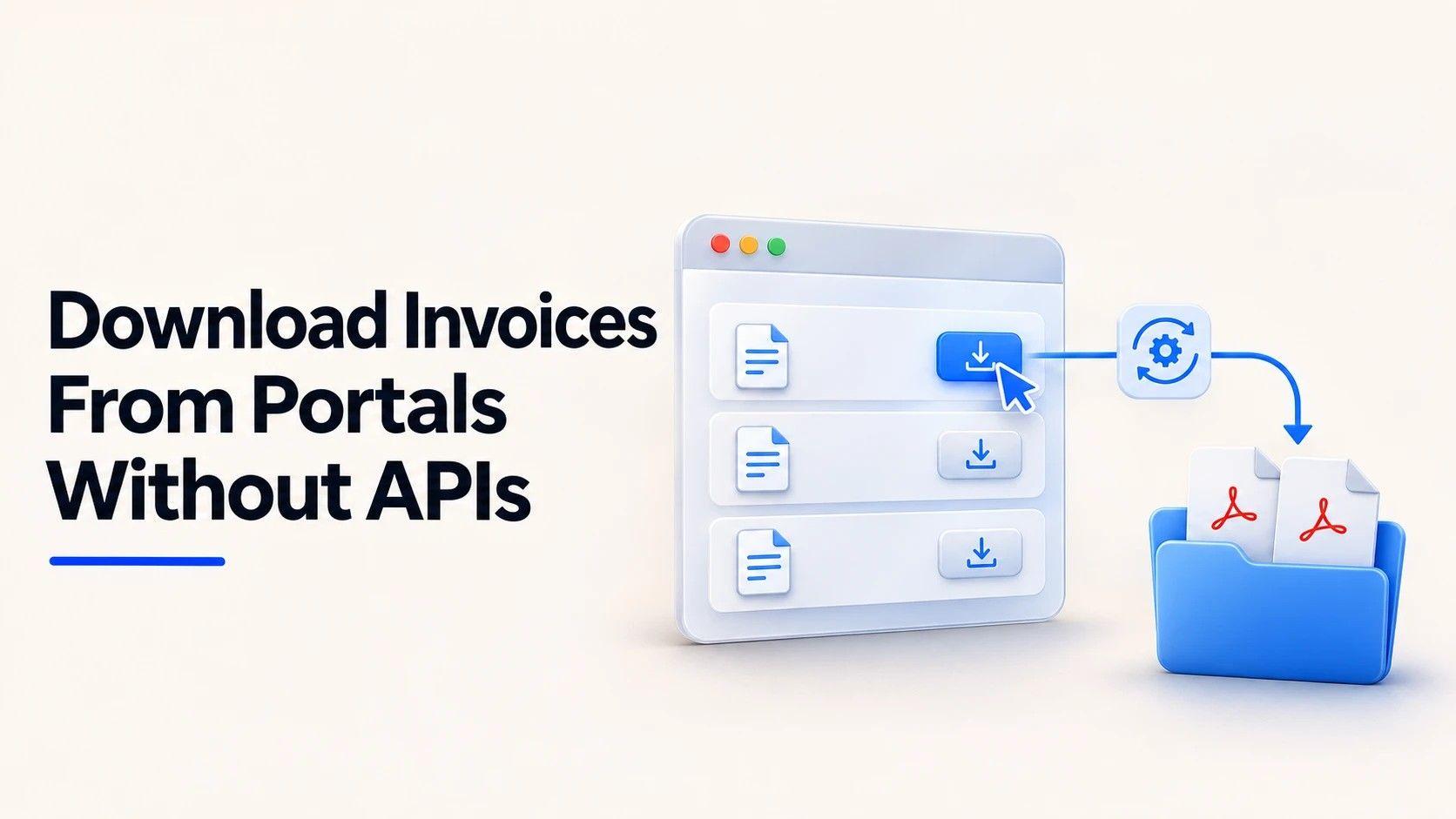
Every month someone on your team logs in to the hosting provider, the SaaS billing page and three supplier portals, clicks "Invoices", downloads a PDF and drops it in a shared folder.
Nobody automates it, because none of those portals has an API.
If you're:
- in finance or ops, collecting invoices by hand from vendor portals every month,
- a developer asked to "just script it" for a portal behind a login,
- or building an accounts-payable tool that has to work with portals you don't control,
This one is for you.
I built the whole flow with Browser Use Cloud: a cloud browser agent opens a billing portal, stops for a human to log in, then downloads every invoice PDF and returns the list as JSON. My Python script picks up the files and writes a CSV. I tested it on November 19, 2026, against a live FOSSBilling demo portal, and four things went wrong before it worked. All of that is below.
TL;DR
- The pieces: a session holds the conversation, a workspace holds the files, a profile or a human holds the login
- Login: the agent stops at the login form, a person logs in through the live view, and a follow-up run continues in the same browser. No password in the prompt
- Result: 3 invoice PDFs saved to the workspace, plus JSON with number, dates, total, currency and status that matched the PDFs line for line
- Cost: $0.024 for the whole session (login stop + download run), 26 steps on the download run
- Gotcha: with the default residential proxy, the portal dropped the login after the first PDF. With the proxy off, the same flow finished
Why invoice portals are hard to automate
Invoice portals are the worst kind of target for a classic scraper:
- There's a login, often with 2FA, and the session is the whole point.
- The PDF isn't a link you can fetch. It's usually generated on click, opens in a new tab or triggers a download.
- Every portal is different. A Selenium script for your hosting provider is useless for your SaaS vendor, and both break when the vendor ships a redesign.
A browser agent handles the third problem by design: you describe the goal ("download every invoice"), not the clicks. The first two need help from the platform, and that's what Browser Use's sessions, workspaces and profiles are for.
Three pieces: session, workspace, profile
The Browser Use docs put it in one line: a session holds conversation history, a workspace holds files, and a profile holds browser state. Their IDs are different and not interchangeable.
For invoices, that maps cleanly:
- Session: the first run stops at the login, the second run continues in the same browser. Pass the same
sessionId. - Workspace: the agent's disk. It saves the PDFs there, and your code lists and downloads them after the run.
- Profile (or a human): the login. For production, a synced profile gives the agent your cookies without a password in the prompt. For this test, a person logged in through the live view, the option the 2FA guide lists next to profiles.
The test portal
I needed a real billing portal with a login, an invoice list and PDF downloads, without exposing my own invoices. I used the client area of the public FOSSBilling demo: an open-source billing system used by hosting companies, which is exactly the kind of portal you'd collect invoices from.
The demo resets periodically, so before the final run I created two unpaid invoices for the demo client from the demo's admin panel: $9.99 for a hosting plan and $11.99 for a domain renewal. A third one, a $0 paid invoice, appeared during the test. I didn't create it, so it probably came from someone else on the shared demo. The agent picked that one up too.
You'll need a Browser Use Cloud API key. Create one here. All calls below use the V4 REST API with the X-Browser-Use-API-Key header.
Step 0: A control run, without a login
First I ran the download task with no profile and no human, to see what the agent does when it isn't logged in. The task told it to stop if it saw a login form and never to log in or create an account.
{
  "logged_in": false,
  "invoices": []
}
Six steps, 18 seconds, $0.0053. It found the login form, stopped, and said so. On an invoice task that's what you want: an empty answer you can see, not a made-up list.
Step 1: Open the portal and stop at the login
The first run only opens the login page and stops. keepAlive: 900 keeps the browser open for 15 minutes after the run ends, so a person has time to log in. Without it, the browser closes about two minutes after the run.
import json, time, urllib.request

KEY = "YOUR_API_KEY"
BASE = "https://api.browser-use.com/api/v4"

def call(method, path, body=None):
    req = urllib.request.Request(
        BASE + path, method=method,
        headers={"X-Browser-Use-API-Key": KEY, "Content-Type": "application/json"},
        data=json.dumps(body).encode() if body is not None else None)
    with urllib.request.urlopen(req, timeout=90) as r:
        raw = r.read()
        return json.loads(raw) if raw else {}

def wait(run_id):
    while call("GET", f"/runs/{run_id}/status")["status"] not in ("completed", "failed", "cancelled"):
        time.sleep(5)
    return call("GET", f"/runs/{run_id}")

workspace = call("POST", "/workspaces", {"name": "invoices"})

run1 = call("POST", "/runs", {
    "task": "Open https://demo.fossbilling.org/login and stop when the login form is visible. "
            "Do not type anything and do not log in: a person will log in through the live view.",
    "model": "gpt-6-luna",
    "workspaceId": workspace["id"],
    "keepAlive": 900,
    "maxCostUsd": 0.20,
    "browserSettings": {"proxyCountryCode": None},   # one stable IP, see "What went wrong"
})
The live view URL arrives in the run's events, on browser.ready:
def live_view_url(run_id):
    while True:
        for e in call("GET", f"/runs/{run_id}/events?after=0").get("events", []):
            if e["type"] in ("browser.ready", "browser.reattached"):
                return e["data"]["live_view_url"]
        time.sleep(3)

print(live_view_url(run1["id"]))
run1 = wait(run1["id"])
The run finished in 4 steps and 16 seconds with: "The login form is visible at https://demo.fossbilling.org/login. I did not enter anything or log in."
Treat the live view URL like a password. Anyone with it controls that browser.
Step 2: A human logs in through the live view
Open the URL, log in as you normally would, 2FA included, and leave the browser on the client area. The agent isn't running during this step. It's just a browser in the cloud, waiting.
In a real tool, this is a "Continue" button in your app instead of a terminal prompt.
Step 3: Download every invoice in the same session
The second run passes the same sessionId, so it reuses the open, logged-in browser. It also passes an outputSchema, so the answer comes back as JSON you can load straight into a spreadsheet or an accounting tool.
schema = {
    "type": "object",
    "required": ["logged_in", "invoices"],
    "properties": {
        "logged_in": {"type": "boolean"},
        "invoices": {"type": "array", "items": {
            "type": "object",
            "required": ["number", "total", "currency", "status", "file"],
            "properties": {
                "number": {"type": "string"}, "issue_date": {"type": "string"},
                "due_date": {"type": "string"}, "total": {"type": "number"},
                "currency": {"type": "string"}, "status": {"type": "string"},
                "file": {"type": "string"}}}}}}

run2 = call("POST", "/runs", {
    "task": "The browser is now logged in to the client area of https://demo.fossbilling.org. "
            "Open https://demo.fossbilling.org/invoice. For every invoice listed, open it, click its PDF button "
            "and save the PDF in the workspace under invoices/, named after the invoice number. "
            "Then return the list of invoices with number, issue date, due date, total, currency, "
            "status and the saved file path.",
    "model": "gpt-6-luna",
    "sessionId": run1["sessionId"],
    "workspaceId": workspace["id"],
    "outputSchema": schema,
    "maxCostUsd": 0.50,
})
run2 = wait(run2["id"])
It took 26 steps and 156 seconds. The output:
{
  "logged_in": true,
  "invoices": [
    {"number": "FOSS00002", "issue_date": "Nov 19, 2026", "due_date": "Nov 24, 2026",
     "total": 11.99, "currency": "USD", "status": "Unpaid", "file": "outputs/invoices/FOSS00002.pdf"},
    {"number": "FOSS00001", "issue_date": "Nov 19, 2026", "due_date": "Nov 24, 2026",
     "total": 9.99, "currency": "USD", "status": "Unpaid", "file": "outputs/invoices/FOSS00001.pdf"},
    {"number": "00003", "issue_date": "Nov 19, 2026", "due_date": "Nov 24, 2026",
     "total": 0, "currency": "USD", "status": "Paid", "file": "outputs/invoices/00003.pdf"}
  ]
}
Here's the same session in the Browser Use dashboard: the first run stopping at the login, the download run, and the three PDFs in the workspace.
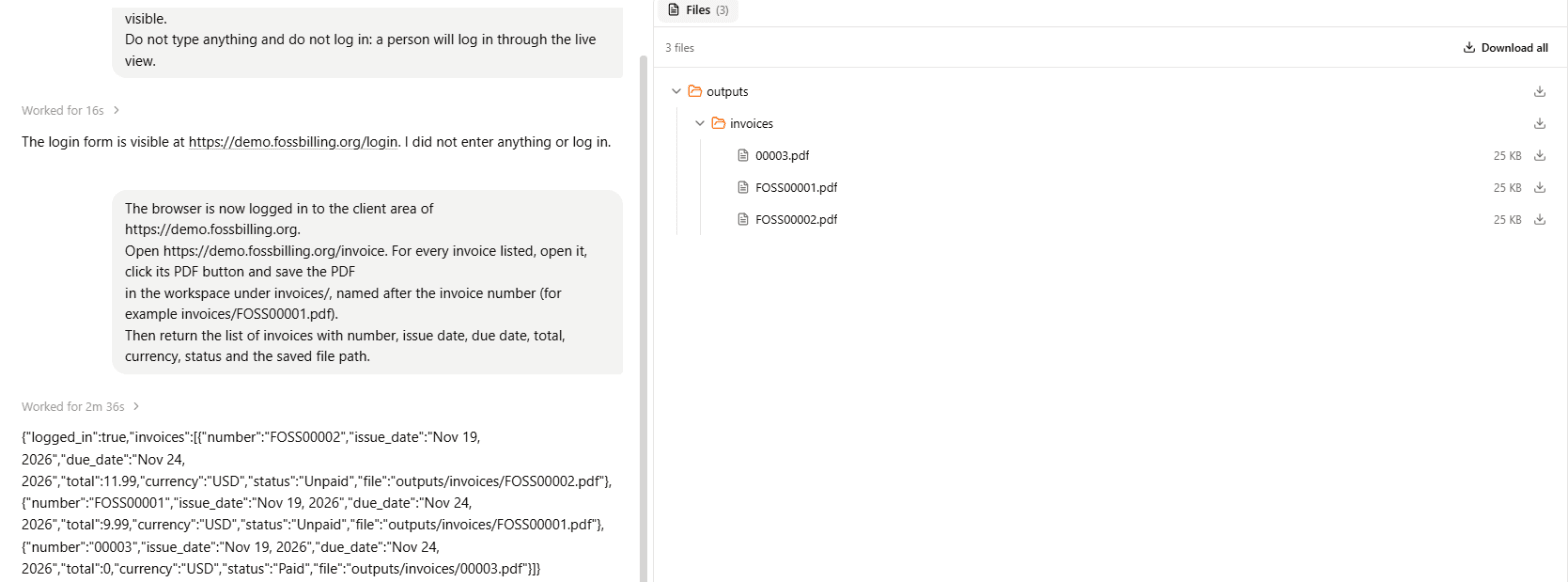
The clicking wasn't the interesting part. Two details from the step log were:
- The PDF button opened a new tab. In the step log, the agent didn't stop at "the file opened". It found the file in the browser's downloads for that run and copied it into the workspace.
- It chose the folder. I asked for
invoices/, and the files landed inoutputs/invoices/. The JSON reports the real path, so readfilefrom the output instead of assuming a location.
Step 4: Pull the files and write a CSV
List the workspace with includeUrls=true, download each PDF, and write the JSON to a CSV:
import csv, pathlib

out = pathlib.Path("invoices"); out.mkdir(exist_ok=True)
files = call("GET", f"/workspaces/{workspace['id']}/files?includeUrls=true")
for f in files["files"]:
    if f["path"].lower().endswith(".pdf"):
        urllib.request.urlretrieve(f["url"], out / pathlib.Path(f["path"]).name)

data = json.loads(run2["output"]) if isinstance(run2["output"], str) else run2["output"]
cols = ["number", "issue_date", "due_date", "total", "currency", "status", "file"]
with open(out / "invoices.csv", "w", newline="", encoding="utf-8") as fh:
    w = csv.DictWriter(fh, fieldnames=cols)
    w.writeheader()
    for inv in data["invoices"]:
        w.writerow({k: inv.get(k) for k in cols})
The download URLs expire after 60 seconds, so fetch them right away. The files themselves stay in the workspace.
These are the three PDFs that came out of the workspace, opened on my machine:
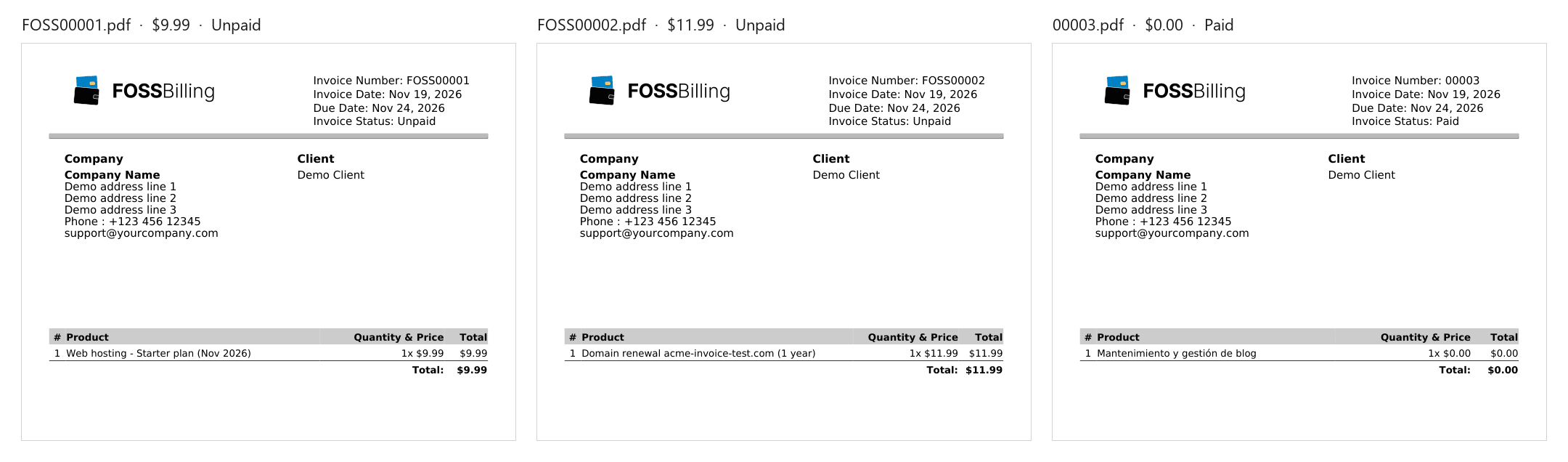
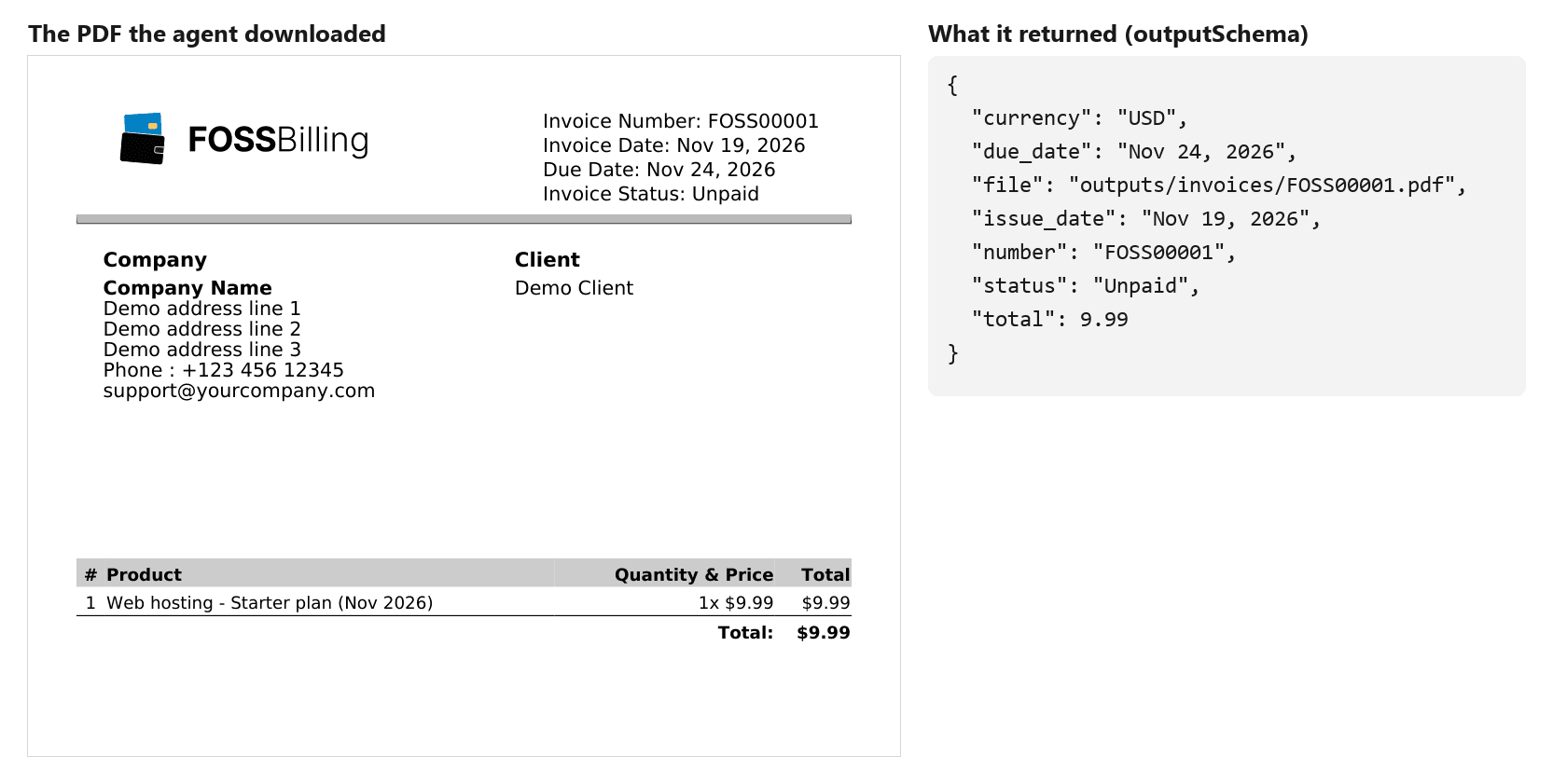
I compared each one with the JSON. Number, dates, status and total matched on every one. Here's the first invoice next to the record the agent returned for it:
Then, if the run succeeded, stop the browser. keepAlive keeps it open, and closing your connection doesn't stop it:
call("PATCH", f"/browsers/{browser_id}", {"action": "stop"})
The browser_id is the browser_session_id in the run's events.
What it cost
Read after the browser stopped, from GET /sessions/{id}/cost:
| Line | Cost |
|---|---|
| Model (gpt-6-luna), both runs | $0.0203 |
| Proxy (off, 0.84 MB direct) | $0.0002 |
| Browser time | $0.0033 |
| Session total | $0.0238 |
About 2.4 cents for three invoices. Most of it was the model reading pages, which is cheaper than I expected for a run that spent two and a half minutes clicking around a portal. The browser line is higher than a one-shot run because the browser stayed open while I logged in. The dashboard's History page shows every session of the test, failures included. The top row is the run above. The others are the control run and the four attempts described in the next section:
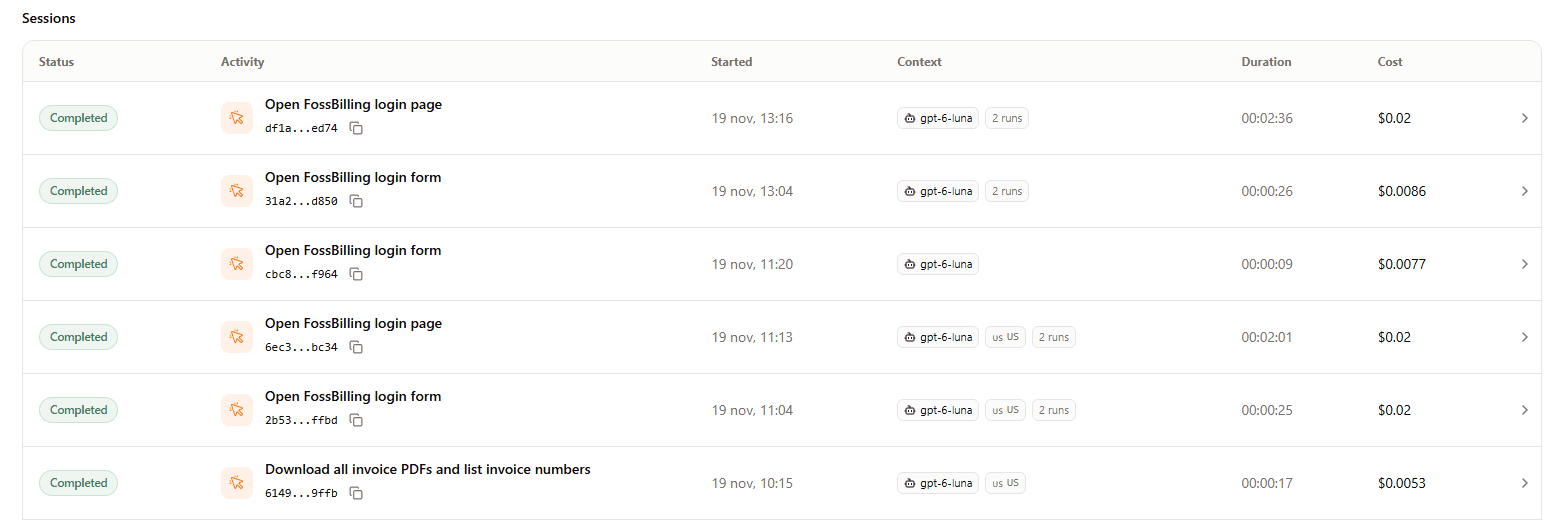
Read from the cost endpoint, those six sessions add up to $0.086. That's the whole experiment, failed attempts included.
I picked gpt-6-luna on purpose. In my cost test, BU 4.0, the default for new projects, cost 7.5 to 15.5 times more in model fees on simple extractions.
What went wrong (and how to avoid it)
Four things went wrong before that clean run. You'll probably hit at least one of them on a real portal.
The invoices I created were wiped by the demo's resets between attempts, so I recreated them each time. That's why the numbers and totals below don't match the final run.
1. The portal reset under me. On the first try, after I logged in through the live view, the agent opened the invoice list, checked the "Paid" tab too, and returned invoices: []. My own browser session on the demo had been logged out and my invoices were gone: the demo had reset minutes earlier. The agent was right. There was nothing to download, and it didn't invent anything. Real portals don't reset, but they do have empty months, so treat an empty list as a valid answer.
2. The session dropped halfway, with the proxy on. On the second try, with the default residential proxy, the agent saved the first PDF and was sent back to the login page on the second invoice. It stopped and reported it:
{"number": "FOSS00001", "total": 11.99, "status": "Unpaid", "file": "not saved (login required)"}
I didn't log the IPs, so this is my best explanation, not a measurement: the proxy changed IP mid-session and the portal treated the browser as a new client. Browser Use's profile docs warn that sites can bind sessions to a device or network, and recommend a stable proxy location. With the proxy off ("proxyCountryCode": None), the same flow finished. If a portal blocks data-center IPs, pin a proxy country and test whether the session survives a full run.
3. The browser closed before the login. A live view only lasts as long as keepAlive. With keepAlive: 900, that's 15 minutes, and by the time I came back the browser had stopped. That session still cost $0.0077, and $0.0053 of it was browser time for a browser nobody used. Size keepAlive to how long a person realistically takes, and remember idle time is billed as browser time.
4. I ran the download before the login, and my script stopped the browser. I launched the download run before the login in the live view was done. The agent found the login page and returned logged_in: false, which was correct. But my script stopped the browser right after any download run, so the session I needed for a retry was gone. Stop the browser only when the run actually succeeded.
From test to production
The live view is great for a first login and for 2FA. For a monthly job, you don't want a person in the loop every time:
- Profiles. Log in once and save the state in a profile, then pass
browserSettings.profileIdon every run. The profile sync helper copies a login from your local Chrome. Before you run it, know that it reads your browser's cookies locally and asks which accounts to upload: pick only the portals you need. Use one profile per end user. - Secrets. If you must type a password, pass it as a secret binding with an alias and
allowedDomains, never in the task text. The docs are clear that an alias keeps the value out of the prompt but doesn't hide it from the page once typed. - A schedule. Run the download task monthly, store the JSON next to the PDFs, and alert when
logged_inis false. That's your signal the profile's cookies expired and someone needs to log in again. - A cost cap. Keep
maxCostUsdon every run. A portal redesign that sends the agent in circles stops there.
Common problems
logged_in: falseon a run that should be logged in. The profile's cookies expired, the live view browser closed, or the portal dropped the session when the IP changed. CheckkeepAlive, re-sync the profile, or try with the proxy off.- The JSON lists invoices but some files say "not saved". The session ended mid-run. Read the
filefield before you trust the list, and re-run only the missing ones. - The files aren't where you asked. Read the path from the JSON or list the workspace. Don't hard-code the folder.
- The download link from the workspace returns an error. URLs from
includeUrls=trueexpire after 60 seconds. Request a fresh list and download immediately.
FAQ
Can a browser agent download invoices from a portal without an API?
Yes. In my test, a Browser Use agent opened a billing portal's invoice list, clicked each PDF button, saved three PDFs to a workspace and returned the invoice data as JSON. The run took 26 steps and the whole session cost $0.024.
How does the agent log in without seeing my password?
Two ways. A person logs in through the live view while the agent waits, or you reuse a saved browser profile that already holds the login cookies. Either way, no password goes in the prompt. If you must type one, use a secret binding limited to the portal's domain.
Does it work with two-factor authentication?
Yes, through the same two options. A saved profile avoids the 2FA prompt while its cookies are valid, and the live view lets a person enter the code when they expire. Browser Use's 2FA guide recommends exactly these two.
Where are the downloaded PDFs stored?
In the run's workspace, Browser Use's file storage for the agent. List the workspace through the API with includeUrls=true and download each file. The URLs expire after 60 seconds, but the files stay in the workspace.
How much does it cost to download invoices with a browser agent?
My test cost $0.0238 for one session: two runs, three invoices, gpt-6-luna, proxy off. Most of it was model fees. A more expensive model or the residential proxy on a heavy portal would raise it.
Why did the portal log the agent out?
In my test, the portal sent the agent back to the login page halfway through a run with the default residential proxy. I didn't log the IPs, but my best explanation is an IP change mid-session. With the proxy off, the same flow finished.
Key takeaways
- A session, a workspace and a login are all you need: one run to reach the login, a human or a profile to get past it, one run to download.
- Ask for an
outputSchema, and the invoice list comes back as JSON you can load into a spreadsheet or accounting tool. - Keep the IP stable on portals with logins. In my test, the run with the residential proxy lost the session halfway.
- Trust the agent's
logged_inflag andfilepaths over your assumptions. In every failed run that reached the portal, the agent reported what happened instead of inventing data.
From here you can build
With this flow in place, you can:
- collect every vendor invoice on the 1st of the month into one folder, with a CSV for accounting,
- reconcile invoice totals against your bank or card statements,
- flag unpaid invoices before their due date.
If you'd rather schedule it without code, the same Browser Use API runs from n8n, as I showed in How to Build a Browser Agent in n8n with Browser Use. And before you scale it to dozens of portals, read What Does a Browser Agent Actually Cost? to choose the model and proxy settings.
The portals still won't give you an API.
Now they don't need to.
Looking for technical content for your company? I can help — LinkedIn · kevinmenesesgonzalez@gmail.com